Connect Torque Pro to cOBD
Works with any OBD2 Bluetooth adapter — ELM327, OBDLink MX+, Vgate iCar Pro, and more. Up and running in under 2 minutes.
Open Torque Pro on your Android device. On the main dashboard screen, look for the small gear icon at the bottom-left corner and tap it.
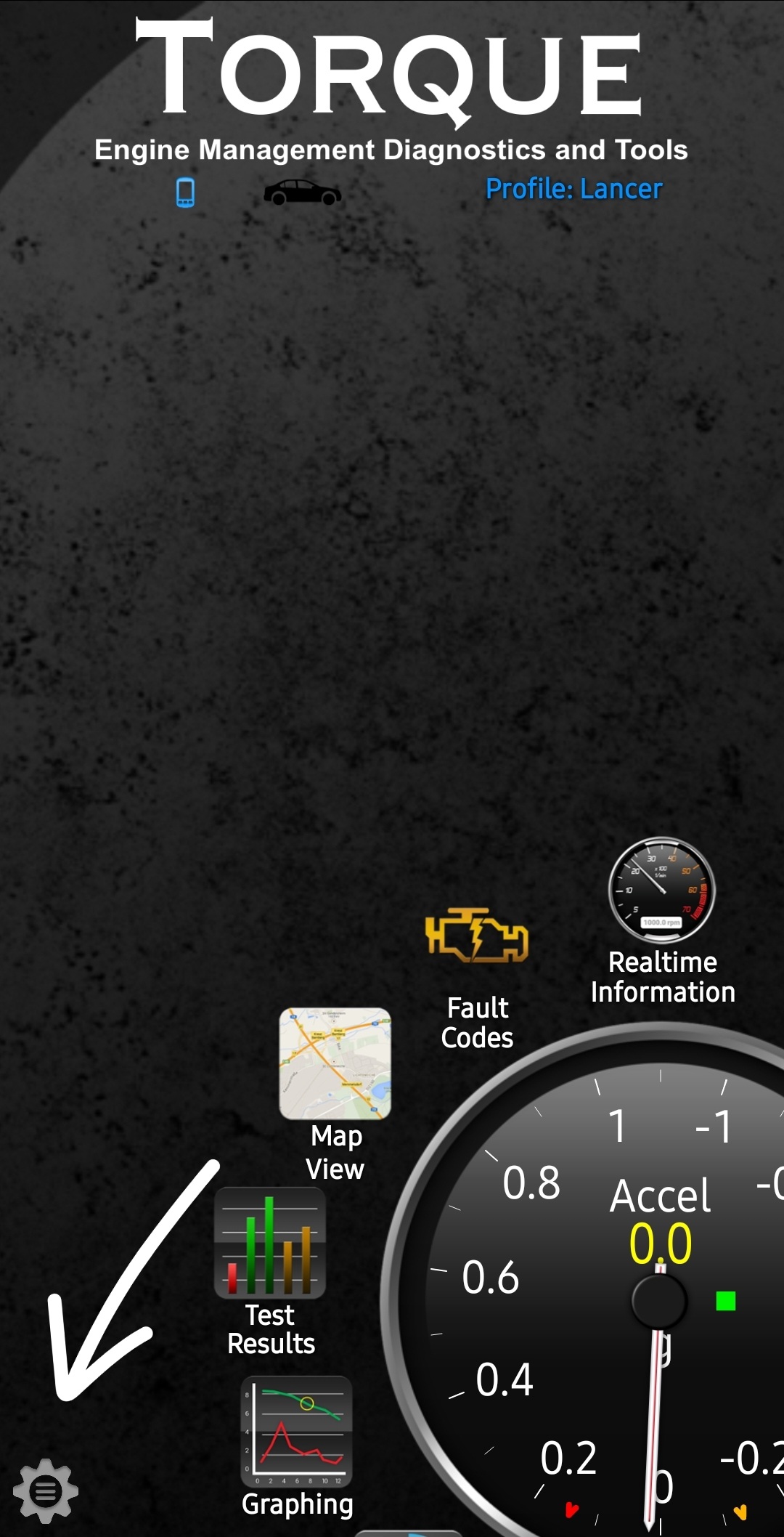
A menu will appear. Tap Settings.
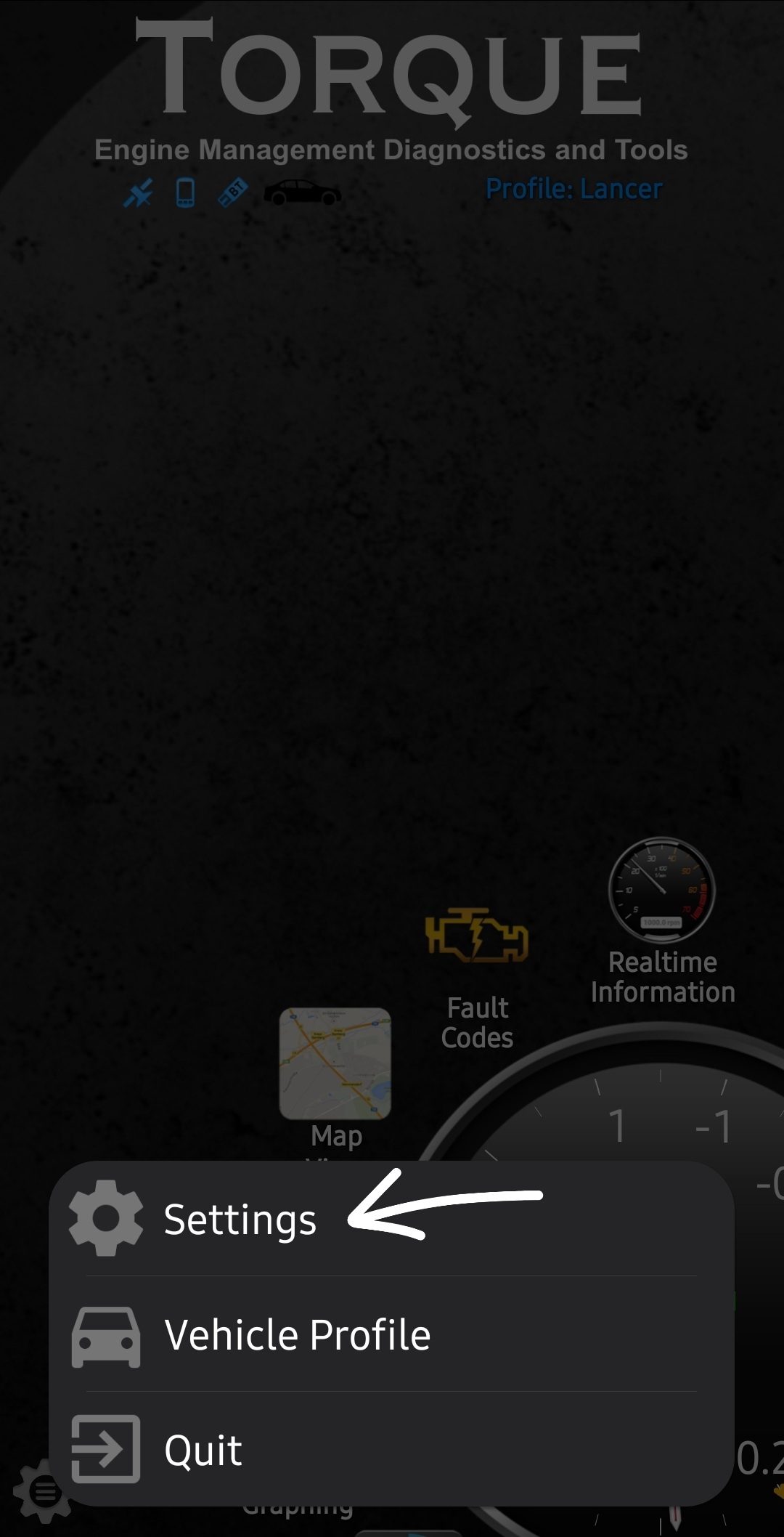
In the Torque Settings screen, scroll down and tap Data Logging & Upload.
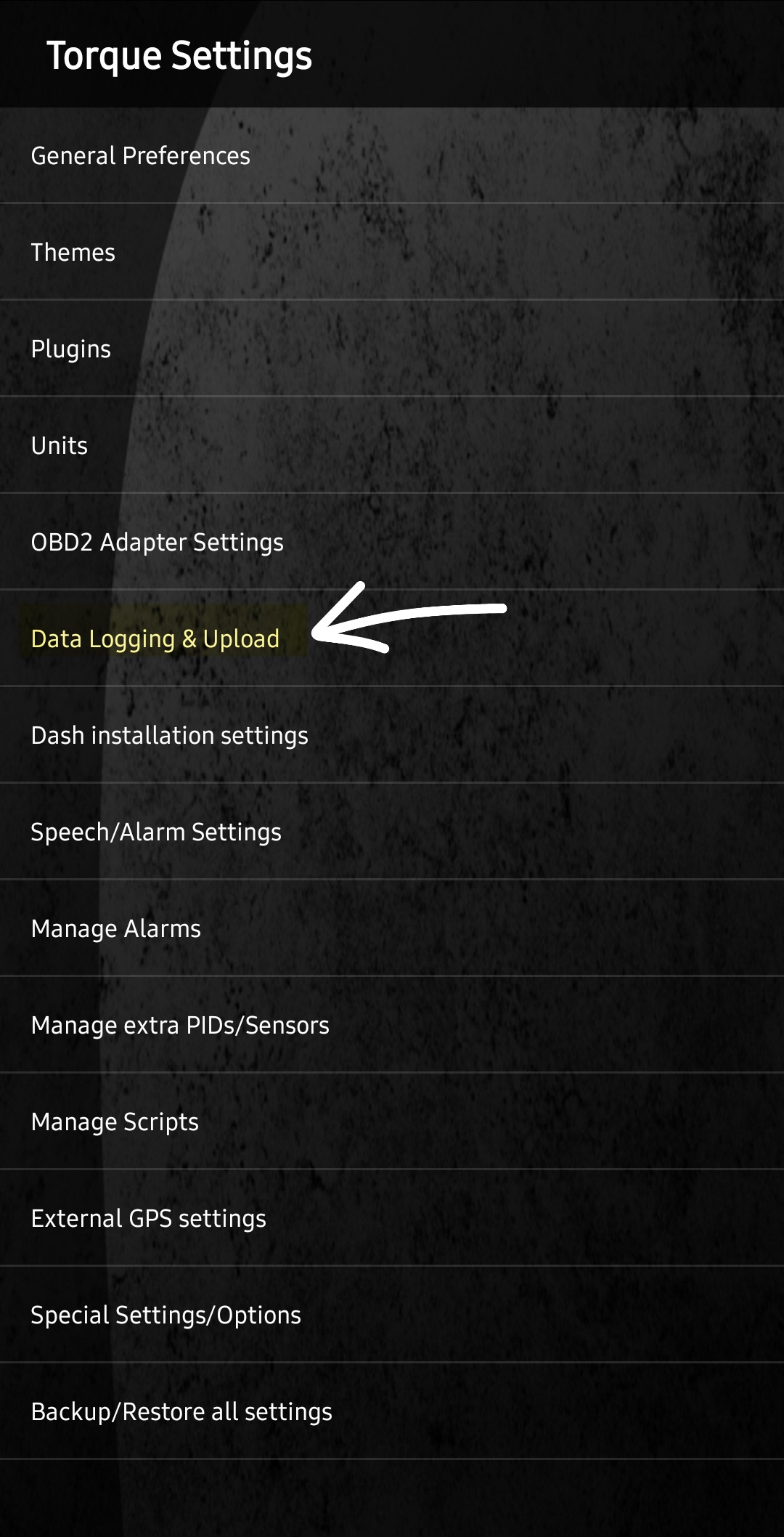
You'll see the Realtime web upload settings. Configure these 4 fields:
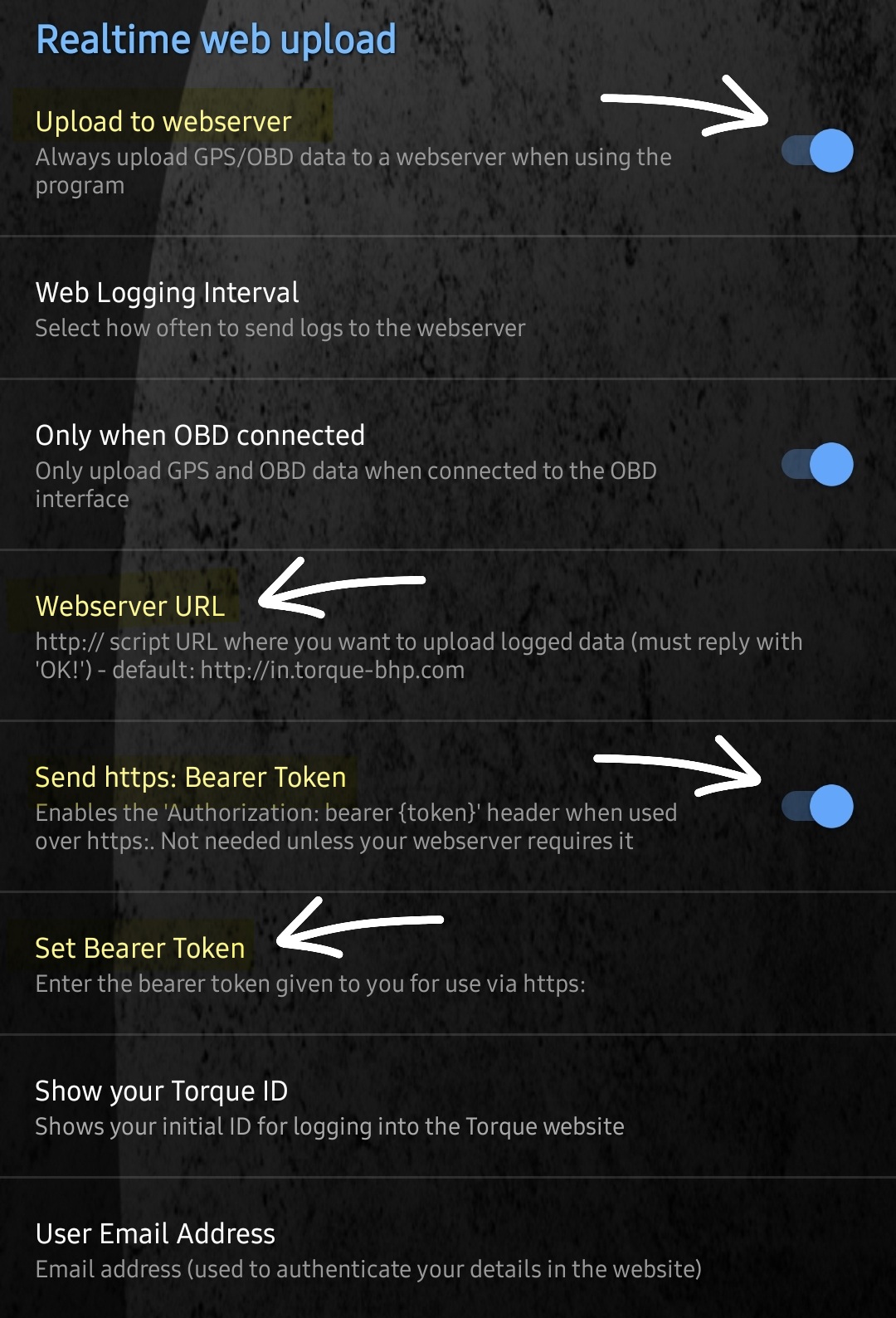
- Enable "Upload to webserver" — this starts sending data in real-time
- Set "Webserver URL" to your cOBD upload endpoint
- Enable "Send https: Bearer Token" — required for secure authentication
- Set "Set Bearer Token" — paste your vehicle's unique token
That's it! Connect your OBD2 Bluetooth adapter to your car, open Torque Pro, and start driving. Data streams to your cOBD dashboard in real-time.
- Plug your ELM327 or OBDLink adapter into the car's OBD port (usually under the dashboard)
- Open Torque Pro and let it connect to the adapter via Bluetooth
- Start driving — RPM, speed, coolant temp, GPS, and 50+ PIDs upload automatically
- Open your cOBD dashboard to see live telemetry, charts, and trip data
Ready to get started?
Create a free account and connect your car in under 2 minutes.
Get Started Free Back to HomeCompatible with Torque Pro for Android. Works with ELM327, OBDLink MX/MX+, Vgate iCar Pro/iCar2, BAFX, Veepeak, Konnwei, and all standard OBD2 Bluetooth adapters.